SpectaStick
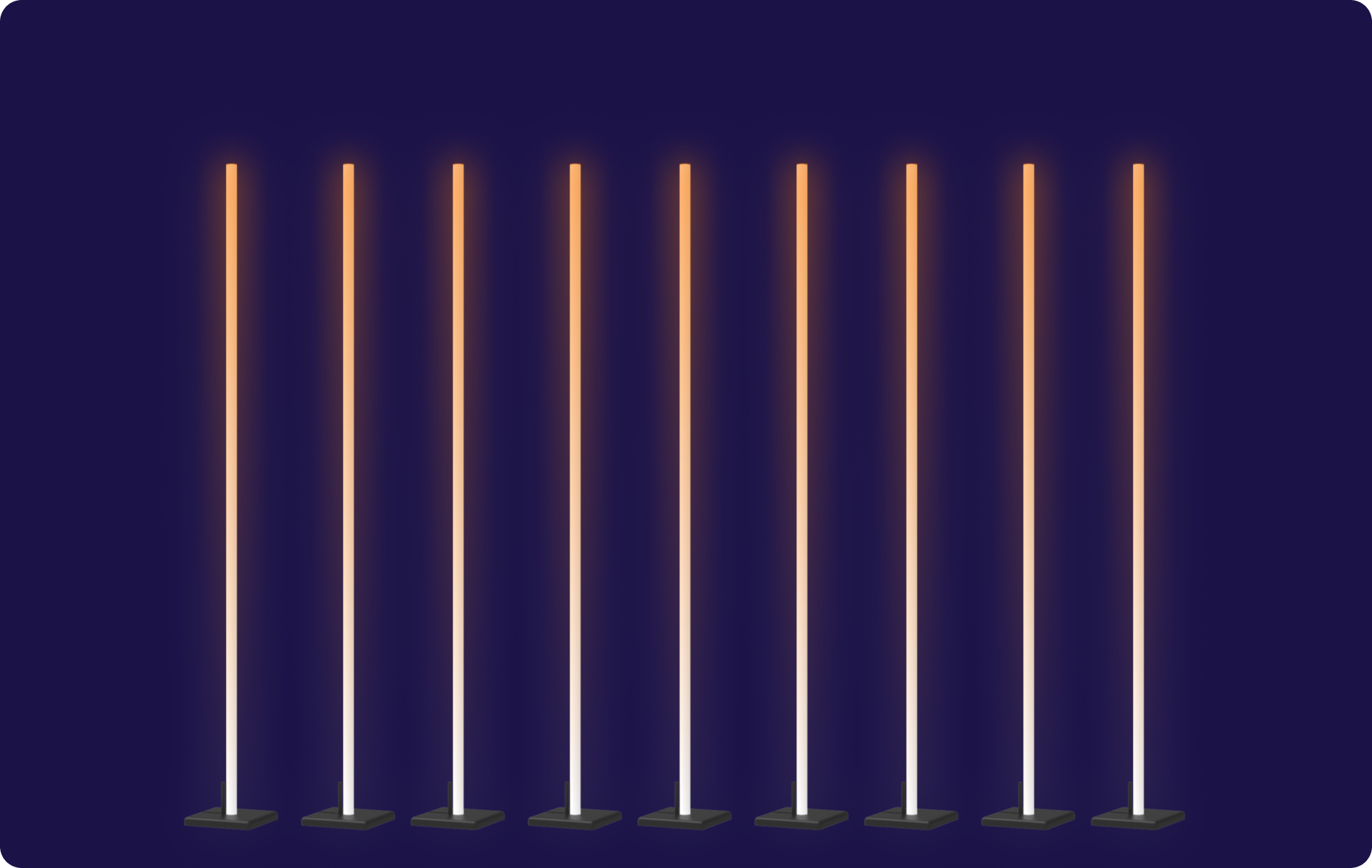
Battery-powered RGBW light sticks built on Spectoda technology.
User manual
Section titled “User manual”Thank you for choosing SpectaStick for your event. This manual provides the basic information needed to work with the sticks.
Starting SpectaStick
- Insert the stick into the base up to the mark.
- Turn SpectaStick on by holding the switch on the back of the base until the LED lights up.
- Raise the small antenna on the top side of the base into the vertical position.
- Connect to the sticks from the app.
Connecting to SpectaStick
- Install the Spectoda Connect app. It is available in the App Store (iOS) and Google Play (Android).
- Click “Continue” and sign in (login: “SpectaSticks”, password: “spektrum”).
- Make sure Bluetooth is enabled; the app will then connect.
- After opening the “SpectaSticks” group, you can control all SpectaSticks at once. By clicking individual SpectaStick blocks, you can control each stick separately.
Mechanical specifications
Section titled “Mechanical specifications”| Parameter | Value |
|---|---|
| Height | 182 cm |
| Tube diameter | 3 cm |
| Base dimensions | 20 x 20 x 3 cm |
Battery life
- The battery in the base lasts about 12 hours at full brightness. Dynamic animation extends battery life when the whole LED strip is not lit continuously.
- If SpectaStick stops glowing, it needs to be charged.
- A blue battery status indicator is located in the channel on the top side of the base, under the antenna. Four lit LEDs mean SpectaStick is charged to 100%. If the last LED is blinking, the battery is almost empty.
- The LEDs also show charging status when charging over USB-C.
Frequently asked questions
Section titled “Frequently asked questions”SpectaStick is on, but does not light up
If the LED on the back side is lit in the configured color, it means the stick is not inserted deeply enough. Pull the stick out of the base and insert it back all the way. When inserting it, check that the plastic and metal parts of the profile are level.
The app is connected, but animations do not work
In the app settings, choose the “update animations” button.
The sticks do not have synchronized animations
Go to Settings -> Troubleshooting tools in the app and click “synchronize devices”.
After the event
- At the end of use, turn all lamps off and remove the profiles from the bases. Turn a stick off by holding the switch until the LED on the back side of the base turns off.
- If the sticks remain turned on, the battery cells may be damaged.
- When storing the profiles, please make sure they always stand on the covered end.
More information
Section titled “More information”More technical data is available from: