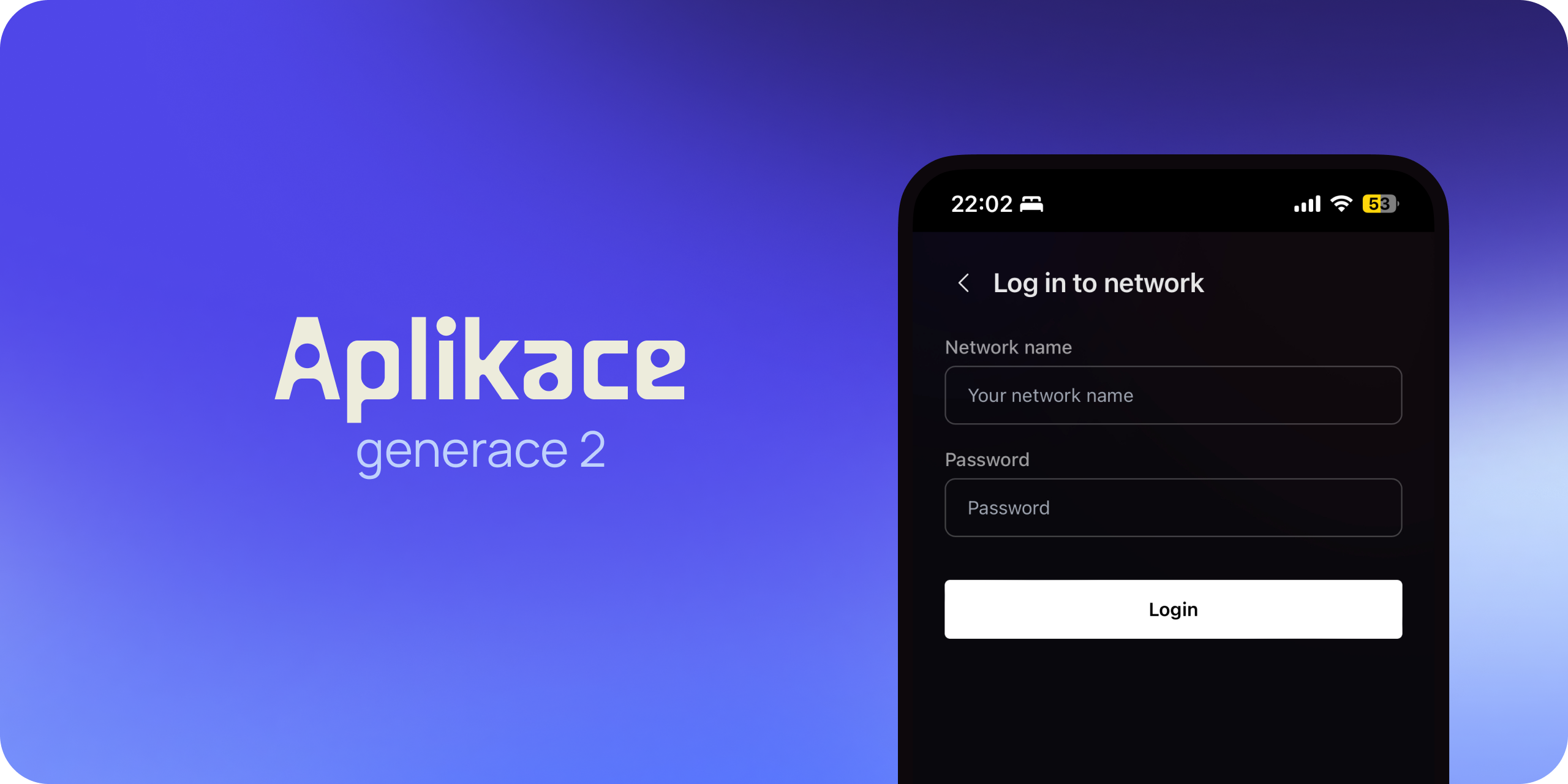
Signing in to Spectoda Connect
How to access the control interface for your lights.
If you have not downloaded the app yet, see Download Spectoda Connect.
How to access the control interface for your lights
Section titled “How to access the control interface for your lights”Spectoda App v3
Section titled “Spectoda App v3”This is the current app version from spring 2025.
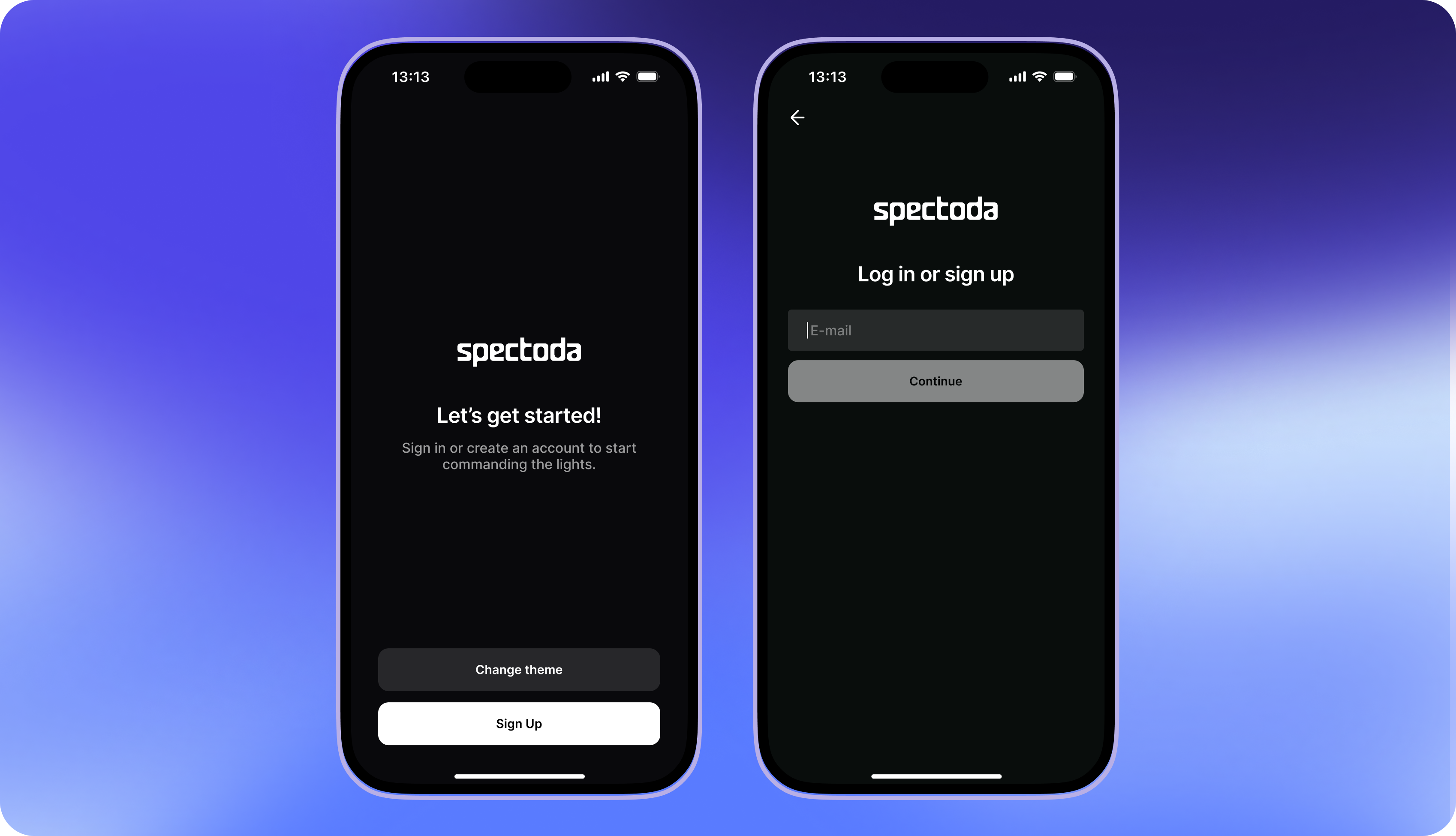
- Download the app to your phone from the App Store or Google Play.
- Tap Continue.
- Enter your e-mail address. You no longer need to know the network name and password, as you did in Spectoda App v2.
- An automatic code will be sent to your e-mail. Enter it in the next step.
- After signing in, you will get access to all networks where you have permission.
Spectoda App v2
Section titled “Spectoda App v2”This app version was discontinued in spring 2025.
- Download the app to your phone from the App Store or Google Play.
- Tap Change theme.
- Select
App v2.0 (Legacy). If you want to control a specific product, such as Aember, Sunflow, or NARA, tap Change Theme and select it from the menu.- For NARA, see NARA app.
- Enter the sign-in details provided by your technician or supplier.
- If you are not sure what to do, or if any problem appears along the way, contact us.