Getting started with Studio
The basics of working with Spectoda Studio, from sign-in to the core project concepts.
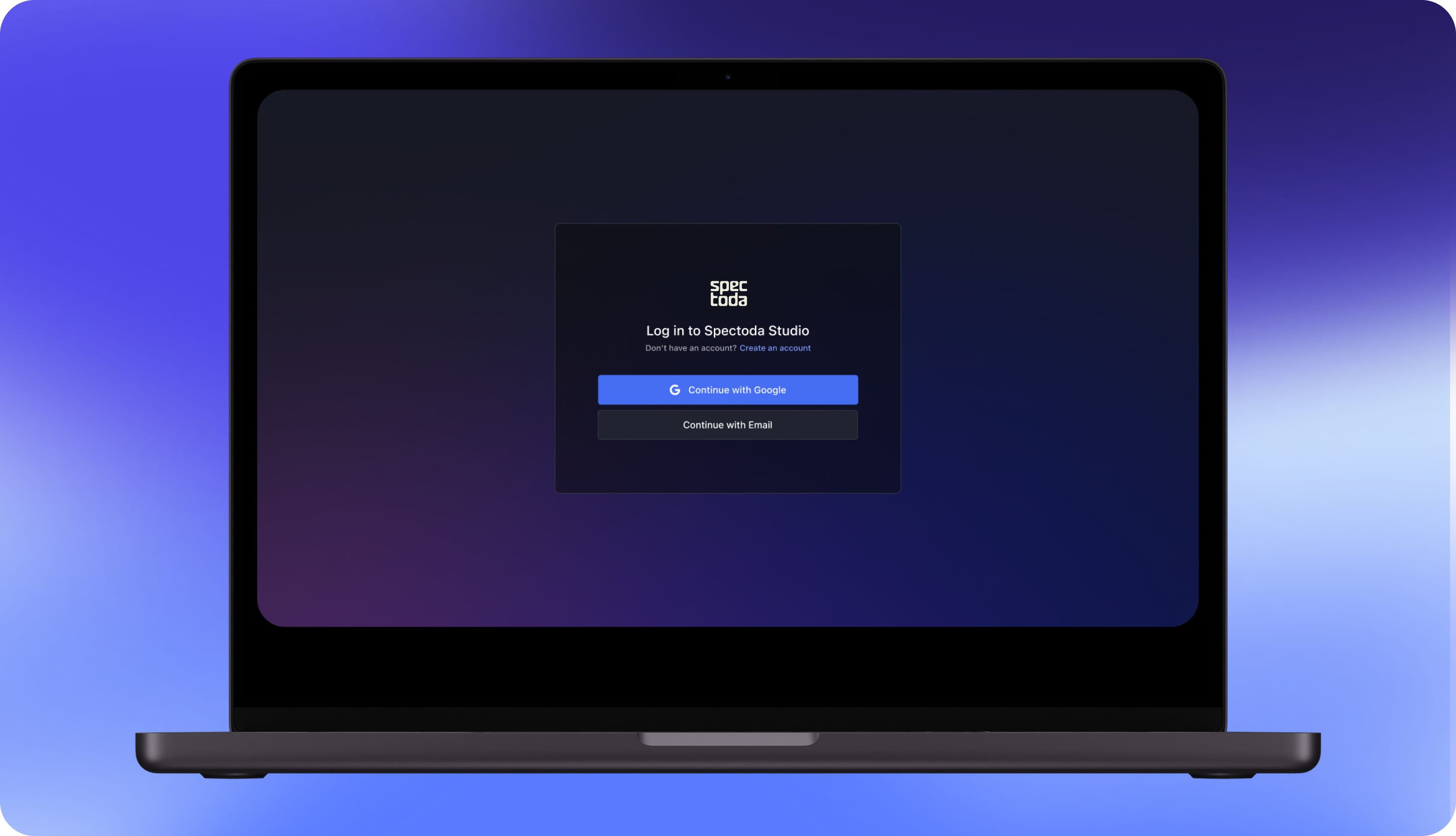
Create an account
Section titled “Create an account”To work with Spectoda Studio, create an account or sign in.
- Start at studio.spectoda.com.
- Click Continue with Email.
- If you already have an account, enter your sign-in details.
- If you do not have an account yet, click Create an account.
- Enter your e-mail address, create a password, and wait for the confirmation e-mail to confirm your registration.
You can now return to Studio and continue.
Main page
Section titled “Main page”After signing in, you will see the project page. Projects contain information about animations and the behavior settings of luminaires. See also TNGL code.
Playground
Section titled “Playground”The Playground is a workspace where you can create animations that do not have to be connected to a physical installation. Settings made in the Playground can be saved as a project at any time.
Import project
Section titled “Import project”Upload a file from your computer. Supported files must use the .tgbl extension.
New project
Section titled “New project”Create a new project. Changes made in this file are saved automatically.
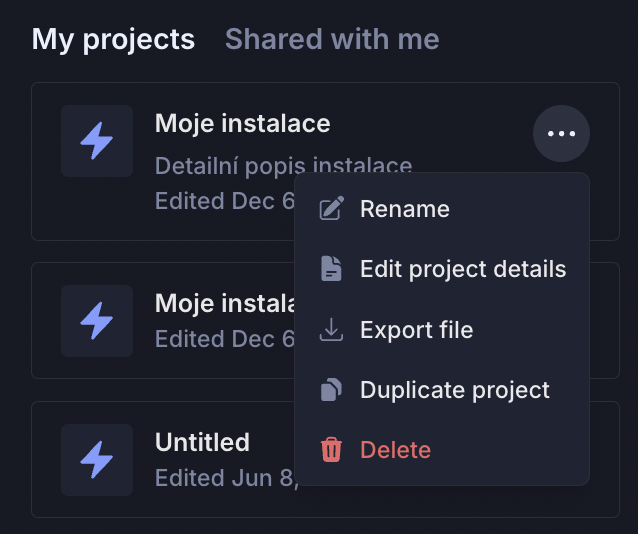
From the main page, you can edit projects. You can:
- rename a project
- edit its description
- export the project to your computer
- create a copy of the project
- delete the project
New project
Section titled “New project”The project workspace is split into several sections. At the top, you will find tabs, or subpages. The first view is Workspace, the main working area.
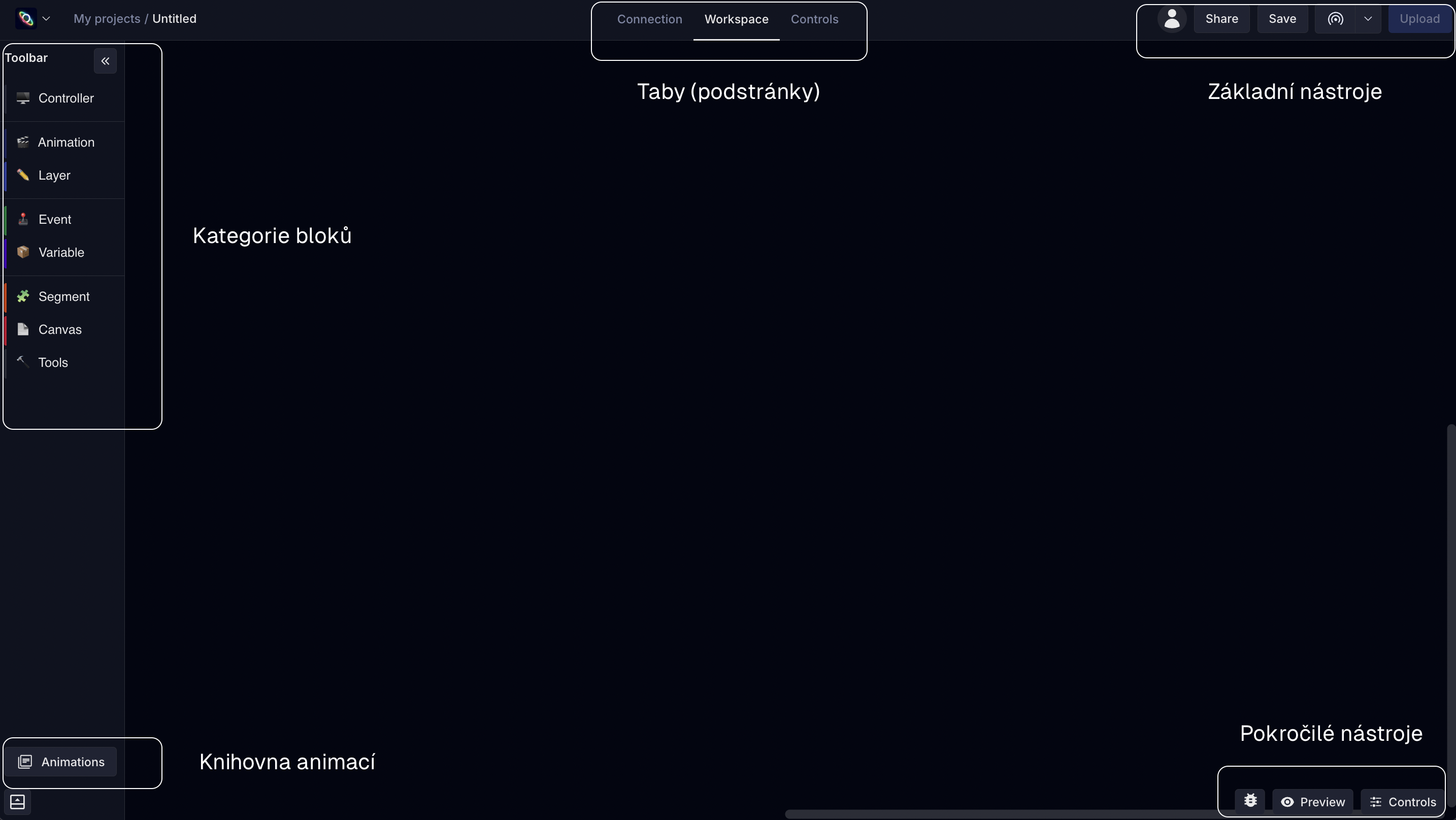
Basic project actions, such as renaming or exporting the project, are available after clicking the Spectoda logo in the top-left corner.